
Logitech Ergo M575S Wireless Trackball Mouse
4.6Editor score
Thumb-operated trackball control
Compact footprint saves desk space
Bluetooth and Logi Bolt connection
Discover the best mouse for drafting, comparing ergonomic shapes, precision controls, wireless connectivity, trackball handling, and 3D navigation options.
A mouse for drafting should place precision, comfort, and navigation control ahead of novelty. The right device helps you move through dense technical drawings, manipulate CAD views, adjust dimensions, and work for hours without unnecessary wrist strain. The best choice depends on your hand size, software, display setup, and preferred way of controlling the viewport.
This guide compares ten ergonomic wireless, trackball, and specialty navigation mice based on the supplied specifications. We examine hand fit, vertical or tilted posture, cursor precision, scroll behavior, programmable controls, connectivity, charging, and compatibility. The list includes general productivity options, compact trackballs, Mac-oriented models, and a six-degrees-of-freedom controller designed for spatial navigation.
Each pick serves a distinct drafting workflow, so the recommendation is not simply the model with the highest rating. The selections show which mouse may suit a small desk, a CAD specialist, a Mac user, or anyone who prioritizes reduced hand movement. Product listings, features, and availability can change, so verify the current specifications and price before purchasing.
4.6Editor score

4.6Editor score
4.4Editor score
The comparison below highlights each mouse's form factor, control system, connectivity, and strongest drafting-related features. It includes conventional ergonomic mice, Bluetooth productivity models, trackballs, and a six-degrees-of-freedom navigation controller.
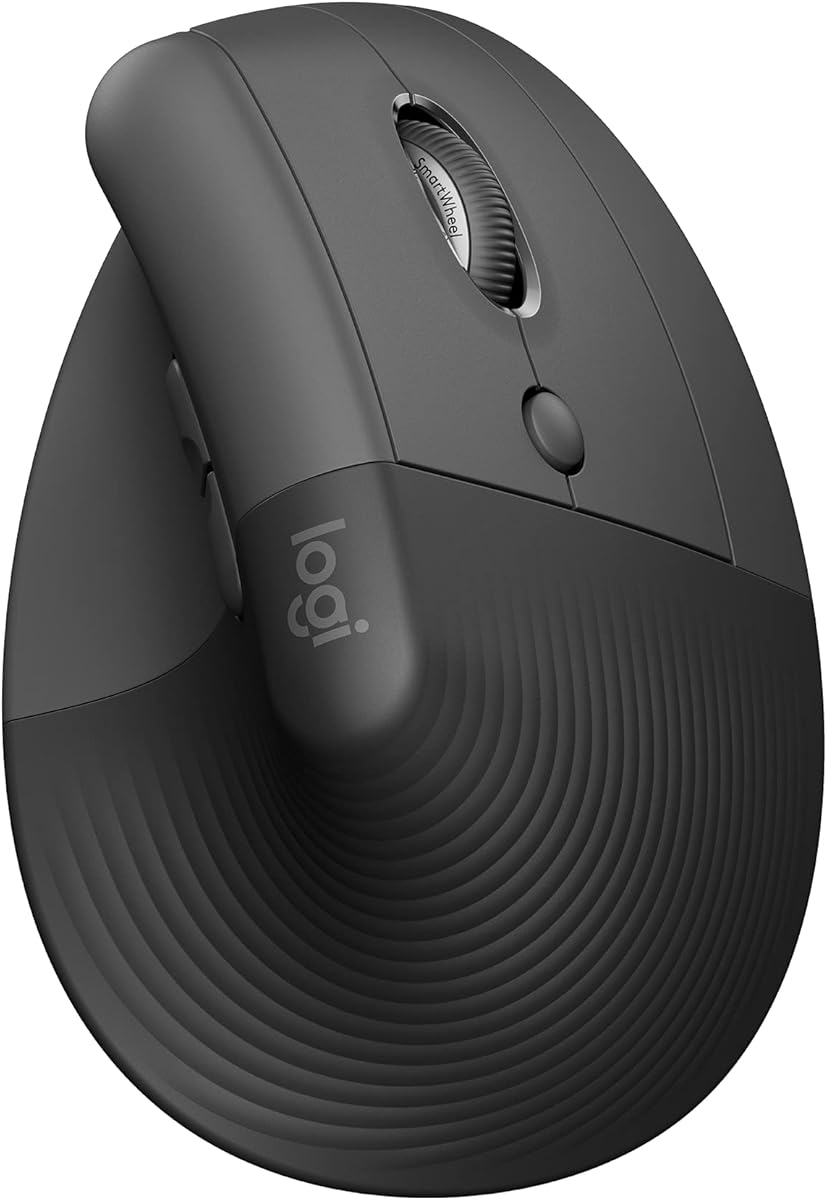


The Logitech Lift is a compact vertical ergonomic mouse designed for small to medium right hands. Its 4.4 rating reflects a favorable reception among users, while the 57-degree shape is particularly relevant to drafting professionals who spend long stretches selecting objects, panning views, and adjusting CAD geometry. The upright posture reduces the degree to which the wrist bends during conventional mouse use.
We may earn a commission when you buy through this link, at no additional cost to you.
The softly textured grip and snug thumb rest give the hand a defined place to settle, which is useful during detailed technical work. Customizable buttons provide access to frequently used commands, and the SmartWheel transitions between smooth scrolling and faster line-based movement as the user changes tasks. Quiet clicks can also make a shared or quiet studio environment less disruptive.
The main limitation is fit. Logitech specifically positions Lift for small to medium right hands, so buyers with larger hands may find the narrow grip restrictive. It also lacks the horizontal scrolling wheel, advanced haptics, and multiple-device controls found in the MX Master family. Those omissions are understandable given its compact emphasis, but they make it less versatile for intensive viewport management.
Lift is a strong recommendation for a drafter with a smaller hand who wants a conventional mouse experience without abandoning a more natural arm position. It is particularly useful for long annotation sessions, floor plans, technical illustrations, and CAD work where precise button placement matters. Larger-hand users should compare the shape with a full-size vertical model before committing.
The 57-degree vertical shape supports a more natural forearm position while retaining the familiar left-button, right-button, and scroll-wheel layout. That balance makes Lift easier to adapt to than a trackball or nontraditional navigation controller.
Customizable buttons and the SmartWheel cover common drafting actions without turning the compact body into a crowded control surface. The result is a restrained mouse suited to detailed work rather than feature-heavy gaming.
We may earn a commission when you buy through this link, at no additional cost to you.
The Logitech MX Master 4 is a feature-rich productivity mouse built for demanding desktop workflows. Its 4.3 rating indicates strong user reception, but the real drafting appeal comes from the combination of a directional Haptic Sense Panel, an Actions Ring, a MagSpeed wheel, and a separate thumb scroll control. Together, they make it easier to navigate long drawing sheets, layers, and application interfaces.
We may earn a commission when you buy through this link, at no additional cost to you.
The Actions Ring provides a customizable overlay that can place filters, adjustments, and shortcuts near the cursor. This is valuable in CAD and design software, where repeated menu paths can interrupt concentration. The MagSpeed wheel can scroll as many as 1,000 lines per second while still stopping precisely, and the thumb wheel provides an additional axis for horizontal or app-specific navigation. Haptics can confirm particular actions, shortcuts, and notifications without requiring visual attention.
The trade-off is complexity and physical size. Although the mouse is tilted and shaped for comfort, its full-size body may not suit users with smaller hands who prefer a compact grip. The Haptic Sense Panel and Actions Ring may also take time to configure, and a professional user is likely to use only a subset of them. Its strong connectivity options reduce friction when moving between a workstation and laptop.
This is the best all-around choice in the list for a drafter who wants precision navigation, fast scrolling, and extensive app-specific controls. It is particularly convincing for CAD, 3D modeling, technical illustration, and large document workflows. Buyers seeking a simpler mouse should consider the Lift, while trackball users should look toward the MX Ergo S.
The Actions Ring adapts its overlay to individual applications, placing commonly used filters, adjustments, and shortcuts close to the cursor. For drafting, that can reduce repetitive trips through nested menus and keep the user's attention on the drawing.
The MagSpeed wheel combines high-speed line scrolling with precise stopping, while the separate thumb wheel adds another navigation dimension. These controls are especially useful when moving through oversized plans, model axes, or long spreadsheets.
We may earn a commission when you buy through this link, at no additional cost to you.
This Graphite version of the Logitech MX Master 4 provides the same advanced control system as the Pale Gray model in a darker finish. With a 4.3 rating, it stands out as a professional productivity mouse for drafting, modeling, and technical work. The Haptic Sense Panel, Actions Ring, MagSpeed wheel, and thumb wheel form a comprehensive navigation toolkit.
We may earn a commission when you buy through this link, at no additional cost to you.
Haptic feedback can provide directional confirmation for selected actions, while the Actions Ring places contextual controls beside the pointer. The main wheel handles large scrolling tasks at speeds of up to 1,000 lines per second, and Quiet Clicks reduce distracting noise by 90%. For users who alternate between applications, the advanced radio chip and USB-C dongle offer a strong connection path, while Bluetooth supports a more flexible setup.
Like the Pale Gray edition, its most meaningful disadvantage is its size. The sculpted, full-size form prioritizes palm support and control access, but it may not suit someone who wants a compact mouse for a crowded drafting board. The amount of available customization may also feel excessive until Logi Options+ profiles are tailored to the user's software.
Choose this edition when you prefer a graphite aesthetic in a professional workstation or want a darker mouse that visually coordinates with technical equipment. It is equally capable as the pale model for CAD and design workflows. The decision between the two versions is primarily finish preference and personal workspace aesthetics, since their listed core features match.
Directional feedback can alert the user to selected actions, shortcuts, and notifications without requiring them to look away from the drawing. This is helpful during repetitive technical tasks where visual focus should remain on the geometry.
The USB-C dongle, advanced radio chip, and Bluetooth support give the mouse flexibility across a fixed drafting station and portable devices. The included receiver route can be preferable where wireless stability is the priority.
We may earn a commission when you buy through this link, at no additional cost to you.
The Logitech MX Ergo S is an advanced wireless trackball for medium to large hands. Its 4.4 rating and 20-degree tilt make it a strong ergonomic option for drafters who want to keep their hand in place while moving the pointer. Unlike a conventional mouse, the trackball is controlled by the thumb, reducing the need to sweep the entire arm across the desk.
We may earn a commission when you buy through this link, at no additional cost to you.
A button switches between speed and high-precision tracking, which can accommodate both rapid viewport movement and careful placement of a crosshair or dimension line. Six customizable buttons, app-aware shortcuts, and Smart Actions create opportunities to automate repetitive commands. The sculpted shell, 20-degree tilt, and soft rubber grip are designed to support a more relaxed forearm position.
Connection and charging are handled through Bluetooth or the included Logi Bolt receiver. A one-minute charge is stated to provide up to 24 hours of use, while a full charge can last up to 120 days. The charging cable is not included, and trackball operation requires a different motor-learning process from a standard mouse. Users who dislike operating a ball should not expect immediate effortless control.
MX Ergo S is best for drafters with a large desk, a preference for stationary hand placement, and a willingness to adapt to a trackball. It can be especially effective in CAD sessions that involve frequent zooming, panning, and command selection. Those wanting a more conventional feel should evaluate the MX Master models instead.
Switchable tracking speeds let the user move quickly through a drawing and then select fine precision when positioning details. That flexibility makes the trackball more versatile for drafting than a fixed-speed input device.
Six customizable buttons can be assigned to common operations and paired with Smart Actions for repetitive workflows. Good configuration can reduce menu navigation and keep the drafting process centered on the drawing.
We may earn a commission when you buy through this link, at no additional cost to you.
The Logitech MX Vertical applies a 57-degree angle to a conventional mouse layout, creating a natural handshake position that can reduce muscular activity compared with a standard mouse. Its 4.4 rating makes it one of the strongest ergonomic options here, and its high-resolution sensor is well suited to selecting small objects in technical drawings.
We may earn a commission when you buy through this link, at no additional cost to you.
The 4000 DPI sensor requires four times less hand movement than a traditional 1000 DPI mouse, according to the supplied comparison. A dedicated cursor-speed switch lets the user alternate between faster navigation and tighter accuracy without opening software. The textured rubber surface provides a secure grip, while the shaped body is intended to accommodate a variety of hand shapes and sizes.
Compared with the more recent MX Master 4, this model is simpler and lacks the horizontal thumb wheel, haptic feedback, and contextual Actions Ring. Users working across large CAD canvases may therefore need additional navigation methods. Its vertical orientation can also feel unusual during the first days of use, particularly for someone accustomed to a flat mouse.
MX Vertical is a solid recommendation for a drafter who values upright posture and precise cursor adjustment but does not need extensive programmable controls. It works well for technical documentation, floor plans, and detailed annotation. Users seeking app-specific commands or a thumb wheel should consider the MX Master line.
The 57-degree vertical angle positions the forearm closer to a natural handshake posture. It may be especially helpful during long sessions involving repeated clicking, selection, and menu work.
The 4000 DPI sensor supports precise placement, and the physical cursor-speed switch allows quick changes. This is useful when alternating between close-up detail work and broader viewport navigation.
We may earn a commission when you buy through this link, at no additional cost to you.
The Space Black Logitech MX Master 4 for Mac is designed around an Apple-oriented workflow while retaining the advanced control features favored by CAD and design professionals. Its 4.4 rating reflects a strong balance of comfort, speed, and specialized features. Logi Options+ support for macOS allows the mouse to integrate more naturally into an Apple-based drafting setup.
We may earn a commission when you buy through this link, at no additional cost to you.
The Haptic Sense Panel supplies customizable directional feedback, while the Actions Ring places app-specific filters, adjustments, and shortcuts near the cursor. Its MagSpeed wheel can scroll 1,000 lines per second and stop on a precise location. The separate thumb wheel adds another navigation axis, and the tilted body is intended to reduce hand stress during extended sessions.
Quiet Clicks reduce click noise by 90%, which is valuable in focused offices and studios. USB-C charging allows the mouse to remain connected to a Mac setup while it charges, although the cable is not included. The main limitation is that its strongest software integration is aimed at macOS, so buyers using a mixed or Windows-centered environment should verify application support before purchasing.
This is the most compelling choice for a drafter whose primary machine is a Mac and who values polished software integration. It works especially well for CAD, design, and technical applications that benefit from contextual controls. Windows users can still consider it, but the standard MX Master 4 may offer a more broadly aligned experience.
Logi Options+ support for macOS helps users adapt controls and workflows to the surrounding Apple system. That tighter integration makes this version appealing for a Mac-based drafting station.
The MagSpeed wheel handles rapid traversal of large documents and drawing extents while retaining precise stopping. A thumb wheel gives users a separate way to pan horizontally or invoke assigned actions.
We may earn a commission when you buy through this link, at no additional cost to you.
The Logitech MX Master 3S combines a 4.6 rating with an 8000 DPI sensor, quiet mechanical clicks, and high-speed MagSpeed scrolling. It is a convincing drafting workhorse for users who want accurate selection and smooth navigation without the more specialized controls of the MX Master 4. The sculpted silhouette supports a natural wrist posture, and the thumb controls remain easy to reach.
We may earn a commission when you buy through this link, at no additional cost to you.
The 8000 DPI sensor tracks on any surface, including glass, and its sensitivity can be customized. That makes it practical for drafting desks where workspace may be limited and a conventional mousepad is unavailable. MagSpeed scrolling is stated to be 90% faster and 87% more precise than the earlier standard, while remaining near-silent. Quiet Clicks offer 90% less click noise for detailed annotation.
App-specific profiles in Logi Options+ make it possible to tailor buttons to different drafting and design applications. FLOW cross-computer control can transfer text, images, and files between Windows and macOS, and the mouse connects to up to three devices over Bluetooth. The important caveat is that this is the Bluetooth-only edition: it includes neither a Logi Bolt receiver nor a charging cable.
MX Master 3S is our top general recommendation for a drafter who values proven precision, cross-device versatility, and a mature customization platform. It suits technical drawing, design review, and everyday CAD work. Buyers who require haptics, a contextual Actions Ring, or a bundled receiver should examine the newer MX Master 4 instead.
An 8000 DPI sensor and customizable sensitivity support precise selection while the ability to track on glass broadens desk placement options. These traits are valuable where workspace is limited or input surfaces vary.
Three-device Bluetooth connectivity and FLOW transfer make it easy to move between a drafting workstation and portable systems. Text, images, and files can move between Windows and macOS without changing the primary input method.
We may earn a commission when you buy through this link, at no additional cost to you.
The Logitech Ergo M575S is a compact trackball that provides a space-saving alternative to the conventional drafting mouse. Its 4.6 rating indicates strong reception, and the thumb-operated design is particularly attractive on a crowded desk. Instead of moving the whole hand to position the pointer, the user rotates the ball while keeping the hand relatively still.
We may earn a commission when you buy through this link, at no additional cost to you.
The M575S supports most hand sizes and is designed to realign the forearm into a better posture. Its low-profile shape uses little room, while the ability to operate on any surface makes it flexible around keyboards, tablets, and drafting references. Three customizable buttons, shortcuts, and Smart Actions provide some command automation without requiring a complex control surface.
Connectivity options include Bluetooth and the included Logi Bolt USB receiver, allowing the user to choose direct wireless pairing or a dedicated receiver. An AA battery is included, simplifying power replacement. Compared with the MX Ergo S, the M575S has fewer buttons and lacks the sculpted 20-degree tilt, so users needing extensive CAD shortcuts may find it less versatile.
The M575S is an excellent entry point for drafters who want an ergonomic, compact trackball and do not require advanced navigation hardware. It suits small workspaces, hot desks, and all-day annotation where arm movement should be minimized. Users who need more buttons or a more sculpted large-hand form should step up to the MX Ergo S.
A stationary trackball requires far less surface area than a sweeping conventional mouse. That makes the M575S useful where a keyboard, reference sheets, tablet, or drafting board already occupies most of the desk.
Thumb control lets the hand remain in place while the pointer moves, and the ergonomic shape supports improved forearm positioning. The result is particularly useful for repeated selection work in a confined workspace.
We may earn a commission when you buy through this link, at no additional cost to you.
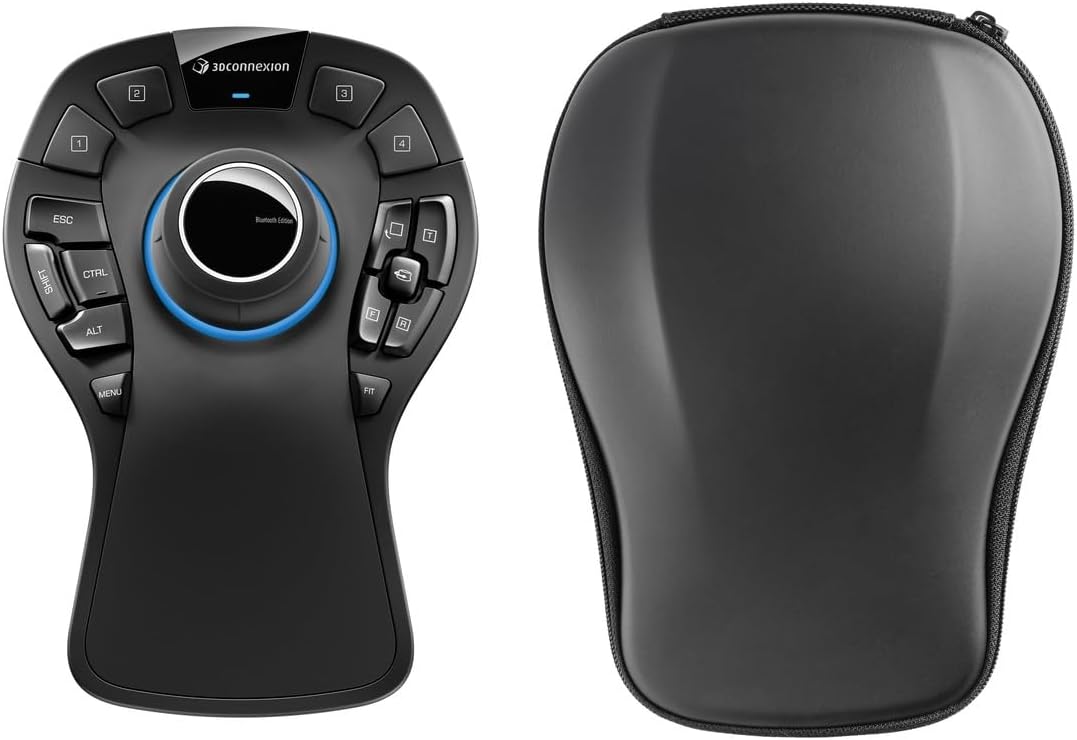
The 3Dconnexion SpaceMouse Pro Wireless BT is a specialist navigation controller built around a six-degrees-of-freedom sensor. Its 4.4 rating and compact construction distinguish it from every conventional mouse in the list. For a drafter who regularly rotates, pans, and zooms a 3D CAD model, the ability to apply pressure in multiple directions can make viewport control feel direct and natural.
We may earn a commission when you buy through this link, at no additional cost to you.
The controller uses a rechargeable 1100 mAh lithium-polymer battery and supports wireless USB-C and Bluetooth Low Energy connectivity. Its six-axis sensor translates force and movement into viewport actions rather than simply moving a cursor across a screen. This is especially relevant in CAD, BIM, 3D modeling, and other applications where users repeatedly inspect assemblies from different angles.
It should not be viewed as a direct replacement for every standard mouse. Its control scheme is optimized for spatial navigation, while selecting individual edges, dimensions, or menu items still generally requires a conventional pointing device. Users may therefore choose to pair it with a mouse for serious drafting rather than adopt it as their only input.
The SpaceMouse Pro is the premium recommendation for users who spend substantial time manipulating 3D models and value a dedicated navigation controller. Its wireless design and multi-direction sensor make it a specialist complement to a drafting workstation. For conventional two-dimensional drawings, the MX Master 3S or MX Master 4 will usually be the more straightforward choice.
The six-degrees-of-freedom sensor responds to movement across multiple axes. This gives 3D modelers a direct way to pan and orient a view without repeatedly relying on keyboard shortcuts or conventional cursor movement.
Bluetooth Low Energy and wireless USB-C support reduce cable constraints at the desk. The rechargeable 1100 mAh battery also avoids disposable-battery maintenance during demanding modeling sessions.
We may earn a commission when you buy through this link, at no additional cost to you.
The White Silver Logitech MX Master 4 for Mac combines an Apple-oriented software experience with the control depth required by technical users. Its 4.4 rating makes it a solid all-round choice for Mac-based drafting. The finish also makes it an easy match for a clean, light-colored workstation containing an Apple display and neutral accessories.
We may earn a commission when you buy through this link, at no additional cost to you.
Its Haptic Sense Panel offers customizable feedback for actions, shortcuts, and notifications, while the Actions Ring places app-specific controls near the pointer. The MagSpeed wheel can move 1,000 lines per second and stop precisely, while the thumb wheel supports fluid navigation in other directions. Quiet Clicks reduce noise by 90%, helping maintain concentration during detailed work.
Logi Options+ for macOS adds application-aware customization, and USB-C charging lets the mouse remain connected while charging. As with the Space Black Mac edition, the cable is not included. The mouse also has a relatively large body and a substantial number of features, so users may need time to determine which controls materially improve their drafting workflow.
Choose the White Silver edition when its appearance coordinates with an Apple-centric desk and you want sophisticated customization without sacrificing high-speed scrolling. It is well suited to CAD, design review, and technical illustration on macOS or iPadOS, with Windows also listed as a compatible environment. Buyers who do not need the Apple-specific emphasis can compare the standard MX Master 4 variants.
The White Silver finish and macOS-focused Logi Options+ experience suit an Apple-centered workstation. It offers a visually coordinated controller while retaining the precision features required by technical software.
The Actions Ring and Haptic Sense Panel work together to expose relevant tools and confirm actions. This reduces reliance on distant toolbars and supports a more continuous drafting rhythm.
We may earn a commission when you buy through this link, at no additional cost to you.
The best drafting mouse balances precise pointing with the navigation, comfort, and connectivity features required by your software and working environment. Consider hand size, control type, viewport demands, desk space, and operating system before deciding.
Hand size has a direct effect on control, comfort, and fatigue. The Logitech Lift is explicitly designed for small to medium right hands, while the MX Ergo S is contoured for medium to large hands. The M575S is described as suitable for most hand sizes, and the larger MX Master models provide a full-size palm-supporting shape. A mouse that feels cramped can require extra gripping effort even if its sensor and controls are excellent.
Choose a mouse whose body accommodates your palm and lets your fingers reach the primary buttons without stretching. For drafting, this also matters when you make precise selections for several hours.
Vertical mice reduce the angle between the wrist and forearm, while tilted conventional mice provide a milder alternative. The Lift and MX Vertical both use a 57-degree vertical angle, the MX Master line uses a natural tilt, and the MX Ergo S uses a 20-degree trackball tilt. A trackball further reduces arm movement because the device stays stationary while the ball rotates.
Prioritize a posture that feels natural and remains comfortable over your longest work sessions. A more specialized input method may require a short adjustment period.
Precision matters when selecting small geometry, moving layer objects, or positioning dimensions. The MX Master 3S offers an 8000 DPI sensor with customizable sensitivity and tracking on glass. The MX Vertical uses a 4000 DPI sensor with a physical cursor-speed switch. These options allow users to balance fine placement against rapid movement without continually changing applications.
Look for adjustable sensitivity, useful surface tracking, and a speed control that fits your drawing scale. High resolution alone is not a substitute for a comfortable control shape.
Drafting often demands more than basic pointer movement. The MX Master 4 family adds an Actions Ring, thumb wheel, and haptic feedback, while the MX Master 3S provides a thumb control and MagSpeed scrolling. The SpaceMouse Pro is purpose-built for six-degrees-of-freedom movement in 3D views. Trackball models also reduce hand travel but use a different operating method.
Match the navigation system to the software. Conventional drafting benefits from fast scrolling and shortcuts, whereas 3D modeling may justify pairing a standard mouse with a dedicated spatial controller.
The options range from Bluetooth-only to dual-mode or receiver-based operation. Most Logitech products support Bluetooth and Logi Bolt, while the Bluetooth edition of the MX Master 3S does not include a receiver. The SpaceMouse Pro supports Bluetooth Low Energy and wireless USB-C. A dedicated receiver can be convenient in busy wireless environments, while Bluetooth reduces receiver clutter and supports portable systems.
Check which operating systems and devices you use before buying. Also verify whether the package includes the receiver, batteries, or a charging cable.
A conventional mouse requires room for repeated lateral movement, whereas a trackball can remain in one place. The compact M575S is especially appropriate for small desks, shared spaces, and setups filled with keyboards, reference drawings, or graphics tablets. Standard ergonomic mice provide familiar left-right motion but occupy a larger working area.
Estimate the available surface before choosing. If your desk is cramped, a low-profile trackball may create more room for precise manual drafting and paper reference work.
Drafting software benefits from shortcuts for pan, zoom, layer selection, and object operations. The MX Master 4 supports contextual controls through its Actions Ring and haptic panel. The MX Ergo S provides six customizable buttons, while the M575S offers three. The MX Master 3S supports app-specific profiles through Logi Options+.
Prioritize controls you will actually use and ensure your operating system is supported by the customization software. A well-chosen small set of shortcuts is often more useful than a large surface full of buttons.
Wireless operation simplifies the desk, but charging requirements vary. The Lift lists up to two years of battery life, the M575S uses an included AA battery, and the MX Ergo S uses USB-C charging with a stated full-charge life of up to 120 days. MX Master 4 models support USB-C charging, although the listed Mac versions do not include a cable. The SpaceMouse Pro uses a rechargeable 1100 mAh lithium-polymer battery.
Choose a power model that suits your routine. Replaceable batteries offer simplicity, while rechargeable models are convenient for a stationary drafting station.
Begin by setting the mouse at the angle and distance that feel natural. For a vertical model, keep the forearm supported and let the wrist remain straighter rather than twisting the hand. For a trackball, place the ball beneath the thumb and move the hand as a unit, avoiding repeated isolated finger motion. Adjust pointer speed before beginning a precision-heavy task.
Configure the application-specific buttons and shortcuts in the appropriate Logi Options+ profile after installation. Assign only the commands you use regularly, then test them in the software where you draft most often. Use the fast scroll function for broad canvas movement and the sensitivity setting or cursor-speed control for selecting small elements and dimensions.
Keep the tracking surface clean and free of dust, oil, and debris. Do not use aggressive solvents on textured grips or key surfaces. Charge rechargeable models according to the manufacturer's guidance, and replace batteries in the M575S when performance declines. For a trackball, remove and clean the ball only as directed by the manufacturer, and periodically verify that buttons and scroll wheels respond consistently.
A vertical mouse can be beneficial for drafters who spend long periods using a conventional mouse and want to reduce wrist bending. Models such as the Lift and MX Vertical use a 57-degree shape, while the MX Master line offers a more moderate natural tilt. Comfort also depends on hand size and personal preference, so a vertical mouse is not automatically more precise. Users with small hands should pay particular attention to the Lift's size and the grip width of any vertical model.
A trackball can suit technical drawing because it keeps the hand in place and reduces repeated arm movement. The M575S is especially compact, while the MX Ergo S offers more buttons, a 20-degree tilt, and adjustable tracking precision. New users may need time to learn the correct motor movement. A trackball is worth considering when desk space is limited or neutral wrist positioning is a priority.
The SpaceMouse Pro is purpose-built for 3D navigation because its six-degrees-of-freedom sensor supports movement across multiple directions. For selecting individual model elements, many users pair it with a conventional precision mouse such as the MX Master 3S. Two-dimensional drafting workflows may not need the dedicated spatial controller and can be well served by the MX Master's scroll wheel and programmable controls.
Yes, because DPI influences how far the pointer travels for a given hand movement. A higher setting such as the MX Master 3S's 8000 DPI can support precise placement on small geometry, while lower speeds are often more comfortable for broad navigation. The MX Vertical also provides a physical cursor-speed switch. Adjustability matters more than a single maximum number, especially when working across multiple drawing scales.
The supplied product information lists Windows, macOS, Chrome OS, and Linux support for the MX Master 3S Bluetooth edition. It also supports up to three Bluetooth devices and can transfer text, images, and files between Windows and macOS through FLOW. The specific Bluetooth edition does not include a Logi Bolt receiver or charging cable, which is important for buyers who expect those accessories in the box.
The Logitech Ergo M575S is a strong fit because its stationary trackball occupies little desk space and operates on any surface. The Logitech Lift is another compact consideration, especially for small to medium right hands, though it still requires space for movement. A graphics tablet may also influence the choice, so users should consider how both devices will sit beside each other before purchasing.
They are helpful but not essential. The MX Master 4's Haptic Sense Panel can confirm selected actions, while its Actions Ring places contextual commands near the pointer. Drafters who repeat the same complex operation may gain meaningful efficiency from them. Users who work mainly in familiar applications with good keyboard shortcuts may receive more value from the simpler MX Master 3S.
Begin with the correct fit and posture, then adjust the mouse so your forearm remains supported and your wrist does not need to bend sharply toward the desk. Vertical mice, tilted mice, and trackballs can each reduce certain forms of strain. Take regular breaks, vary tasks, and avoid reaching for controls that could be assigned to a nearer button. Persistent discomfort should be discussed with an appropriate medical or ergonomic professional.
The Logitech MX Master 3S is the strongest general recommendation because it combines a high 8000 DPI sensor, quiet clicks, fast scrolling, app-specific customization, and cross-computer control. The Logitech Ergo M575S is the leading compact and budget-minded option, while the 3Dconnexion SpaceMouse Pro is the specialist premium choice for six-degrees-of-freedom model navigation.
Prioritize fit and control method before extra features. Small-handed users should examine the Logitech Lift, large-handed trackball users should consider the MX Ergo S, and Mac-based professionals can evaluate the Mac editions of the MX Master 4. If your work is centered on 3D views, a dedicated spatial controller may add more value than another general-purpose mouse.
Product listings and specifications can change over time, so confirm hand-size guidance, operating-system support, included accessories, and current pricing before purchasing. A careful comparison against your desk, software, and typical working scale will lead to the most useful drafting setup.