
StarTech USB-A Dual 4K Dock
4.4Editor score
Dual DisplayPort outputs
Integrated Gigabit Ethernet
Bus-powered compact design
Explore the best Displaylink Adapter options for macOS and Windows computers, comparing dual-monitor support, resolution, ports, compatibility, and setup.
A Displaylink Adapter adds one or more external displays through USB rather than relying entirely on a computer’s native video output. The right model can turn a laptop into a productive multi-screen workstation, but differences in ports, drivers, display support, charging, and operating-system compatibility make careful comparison essential.
This guide evaluates ten Displaylink Adapter options across dual-monitor configurations, supported resolutions, USB connectivity, macOS and Windows compatibility, peripheral integration, and practical limitations. It includes adapters with HDMI and DisplayPort outputs, portable hubs, and compact docks designed to work around external-display restrictions on newer MacBook models.
Each review identifies the product’s strongest use case while noting relevant limitations such as required drivers, excluded operating systems, HDCP restrictions, or the need for separate cables. The list covers options for productivity, coding, analysis, video conferencing, and home-office setups, although product availability and prices can change.
4.4Editor score

4.6Editor score

4.5Editor score
The table below compares all ten adapters by their most important distinctions, including display output, maximum resolution, host connectivity, peripheral support, and operating-system limitations. It is designed to make the differences between HDMI and DisplayPort models, as well as the requirements of each system, easier to compare.



The ACASIS USB C to Dual HDMI DisplayLink Adapter combines two 4K at 60Hz display outputs with charging and three USB-A peripheral ports. Its 4.3 rating reflects a broadly capable design for users who want more than a basic video converter, particularly MacBook and Windows users working across multiple productivity applications.
We may earn a commission when you buy through this link, at no additional cost to you.
The strongest feature is its combination of dual-display support and practical dock integration. A single USB-C or USB-A host connection can drive two HDMI monitors, while the 100W USB-C Power Delivery port helps maintain a connected laptop’s charge during extended work sessions. The three USB-A ports are suited to keyboards, mice, and flash drives rather than heavy file transfers.
There are important trade-offs. DisplayLink Manager must be installed, and the supplied information specifically warns against gaming and HDCP-protected streaming content. Those limitations make the adapter less appropriate for entertainment-focused setups, but they have little effect on office, coding, spreadsheet, and conferencing work where DisplayLink is most useful.
This is a strong overall recommendation for someone who wants a compact, all-in-one productivity adapter rather than a bare video adapter. It is particularly valuable on newer MacBook Air and Pro systems that need more external screens than their native video output can provide, provided the user is comfortable installing the necessary driver.
Dual monitors, 100W charging, and three USB-A ports reduce the number of separate accessories needed at a temporary desk. The aluminum housing also makes the adapter more practical to carry between home, office, and meeting spaces.
Office applications, code editors, financial spreadsheets, and video calls are better matches than games or protected streaming services. Users should install the DisplayLink driver before beginning regular work.
We may earn a commission when you buy through this link, at no additional cost to you.
The WAVLINK USB 3.0 or USB C to Dual HDMI 4K Adapter delivers two extended 4K at 60Hz displays from one compatible host connection. Its 4.4 rating and broad platform coverage make it a practical choice for MacBook, Windows, and ChromeOS users who prioritize straightforward dual-monitor productivity.
We may earn a commission when you buy through this link, at no additional cost to you.
A major convenience is the hybrid USB-A and USB-C cable, which reduces the need to carry separate host adapters. The adapter can work with USB-C, USB-A, Thunderbolt 3 and 4, and USB4 systems, while offering mirror and extended-display modes for documents, browser windows, and communication software.
The product is not as broadly universal as its connection options may initially suggest. Its listed system support excludes iOS and Linux, and HDCP-protected playback on services such as Netflix and Hulu is unavailable. It is also not positioned for gaming or graphics-intensive work, where native GPU output is usually preferable.
This adapter suits buyers who want capable dual-screen output without a large collection of added ports. Its combination of 4K performance, flexible cabling, and a clear target for common productivity systems gives it strong value, especially for users with MacBook Air or Pro models limited to one native external display.
The hybrid USB-A and USB-C lead simplifies switching between modern Thunderbolt and USB4 computers and older USB 3.0 systems. That flexibility is useful for shared desks and mixed-device offices.
MacOS, Windows, and qualifying ChromeOS systems are supported, but the manufacturer does not list Linux, Unix, iOS, or iPad compatibility. Check the host system before purchasing if your workflow depends on one of those platforms.
We may earn a commission when you buy through this link, at no additional cost to you.
The WAVLINK Universal Video Adapter uses DisplayLink to extend a single computer workspace to an HDMI monitor, with stated support for as many as six additional displays on PCs when one adapter is used per monitor. Its 4.4 rating reflects broad operating-system and host-interface support.
We may earn a commission when you buy through this link, at no additional cost to you.
Unlike the dual-HDMI alternatives in this guide, this model emphasizes flexibility. It works with USB-C, USB-A, Thunderbolt 3, 4, and 5, and USB4 connections, while the listed operating systems include current and older Windows releases, multiple macOS versions, Ubuntu, ChromeOS, and Android devices with USB OTG.
External microphone input and earphone output add useful handling for calls and private listening. The trade-off is display resolution: it supports up to 2048 by 1152 at 60Hz or 2560 by 1440 at 50Hz, so buyers seeking two 4K screens should choose a dual-output model instead.
This is the best choice for a user who values device breadth, basic audio handling, or incremental screen expansion over maximum resolution. It is also useful for building a multi-PC display arrangement, although each connected monitor still requires its own adapter.
The external 2.1-channel microphone input and headphone output make the adapter more than a display-only accessory. These connections can simplify a compact workstation where headset management matters.
Because the adapter provides one HDMI connection, users can add displays one at a time. PCs can support up to six additional monitors in the stated configuration, provided the host has suitable bandwidth and compatible DisplayLink software.
We may earn a commission when you buy through this link, at no additional cost to you.
The Plugable USB C to HDMI Adapter adds two external 4K at 60Hz displays to a compatible computer from one USB-C port. With a 4.3 rating, it is especially compelling for MacBook Air and Pro users who want to combine their laptop screen with two external monitors.
We may earn a commission when you buy through this link, at no additional cost to you.
The adapter addresses a common limitation of modern Mac systems that natively support only one external display. It supports both extended and mirrored modes, works with macOS 11 or later, Windows 10 or later, and ChromeOS 100 or later, and does not require an external power supply for its stated display functions.
Setup on macOS is more involved than on the listed Windows and ChromeOS systems. Users must install DisplayLink Manager and approve the required display permission, while protected streaming services remain incompatible. The absence of HDCP support means it should not be chosen as a dedicated Netflix, Hulu, Disney+, or Prime Video display solution.
Its strongest appeal is a clean, dedicated dual-display experience backed by lifetime North American support. Choose it when the computer is a Mac and productivity is the goal. Users primarily watching protected content should instead choose a native display adapter.
A laptop screen plus two external 4K monitors creates a three-display workspace for research, communication, and application management. The adapter remains especially relevant for base MacBook Air models with only one native external display.
The requirement to install DisplayLink Manager and grant display permission makes the initial process more deliberate. Following the setup guidance helps ensure both monitors are recognized and positioned correctly.
We may earn a commission when you buy through this link, at no additional cost to you.
The Plugable USB-C and USB-A Dual 4K HDMI Adapter uses the DisplayLink DL-6950 chipset to drive two HDMI monitors at up to 4K 60Hz. Its 4.5 rating and integrated USB-A host adapter make it especially useful for offices that support both newer and older Windows laptops.
We may earn a commission when you buy through this link, at no additional cost to you.
Users can connect through USB-C, Thunderbolt, USB4, or USB-A without requiring an external GPU or an additional Thunderbolt port. The included host adapter supports compatible older Windows computers and frees a USB-C port on newer systems, which is useful in shared or mixed-device workspaces.
The manufacturer recommends Windows rather than macOS, and a DisplayLink driver is required on Windows. ChromeOS 100 or later receives automatic support where the host hardware qualifies. HDCP-protected streaming is another limitation, making the adapter better suited to office applications, coding, spreadsheets, browsing, and general multitasking.
This is a compelling recommendation for Windows-centric organizations and hot desks where one adapter may need to support several generations of laptops. Its 4.5 rating, flexible host connection, and lifetime support distinguish it from adapters limited to a single connector type.
The integrated USB-A adapter lets the same unit serve modern USB-C systems and compatible legacy Windows laptops. That makes deployment easier in offices where computer hardware changes over time.
Two 4K at 60Hz screens provide room for side-by-side documents, browser research, and communication tools. The DL-6950 chipset provides a defined platform for consistent multi-monitor use in traditional and hybrid offices.
We may earn a commission when you buy through this link, at no additional cost to you.
The StarTech USB-A DisplayLink Dual 4K Mini Dock is a compact DisplayLink-certified adapter that adds two DisplayPort outputs and Gigabit Ethernet through one USB-A host connection. Its 4.4 rating makes it attractive for compact offices, hot-desking stations, and USB-A-heavy business laptops.
We may earn a commission when you buy through this link, at no additional cost to you.
The mini dock uses a DisplayLink-certified DL-6950 chipset, supports dual 4K at 60Hz output, and is bus-powered, reducing the need for a separate power supply. Its short integrated cable adds placement flexibility and can reduce strain on ports, while the Ethernet connection is useful in offices that still rely on wired networking.
The main limitation is that it uses DisplayPort rather than HDMI. Users whose monitors have only HDMI inputs will need suitable DisplayPort-to-HDMI cables and should confirm that those cables are active and support the intended resolution. The listed compatibility centers on Windows and ChromeOS rather than macOS.
Choose this adapter for a small, network-connected workstation built around a compatible USB-A computer. It is especially relevant to managed deployments because of its compact form, automatic setup emphasis, and TAA designation, but it is less convenient for users whose displays are exclusively HDMI.
The integrated Gigabit Ethernet port combines a wired office connection with dual-display expansion. This reduces the number of adapters needed at a fixed workstation and avoids relying solely on Wi-Fi.
The compact enclosure and 30-centimeter attached host cable suit confined desks and frequently changing setups. A USB-A laptop can be connected without searching for a separate dongle.
We may earn a commission when you buy through this link, at no additional cost to you.
The ACASIS Dual DP DisplayLink Adapter is a feature-rich dock for MacBook Air, MacBook Pro, and compatible Windows systems. With a 4.8 rating, it is the highest-rated product in this guide and combines two 4K at 60Hz DisplayPort outputs, 100W charging, and three USB-A ports.
We may earn a commission when you buy through this link, at no additional cost to you.
Its integration makes it appealing for a permanent desk as well as a mobile setup. The primary DisplayPort port near the PD connection supports MST functionality, while the dual DisplayPort outputs enable a true extended desktop. USB-A connectivity is provided for common peripherals, and the aluminum alloy housing is designed to dissipate heat and resist scratches.
The key compromise is output type. This is not an HDMI adapter, so displays with only HDMI ports require a DisplayPort-to-HDMI cable. The driver must also be installed before first use. These conditions make the adapter less convenient for buyers whose existing monitor cabling is exclusively HDMI.
For users with modern DisplayPort monitors and a need for a complete desk setup, this is an excellent recommendation. Its high rating, charging capability, and peripheral ports provide more functionality than a basic display adapter while still delivering the dual-screen expansion sought by Mac and PC users.
Two displays, 100W charging, and three USB-A ports cover the principal needs of a productivity desk. A user can connect a power cable, two monitors, and everyday peripherals with less cable clutter.
The adapter takes full advantage of native DisplayPort equipment and supports extended desktops for multitasking. HDMI-only users should first confirm that they are willing to add a compatible DisplayPort-to-HDMI cable.
We may earn a commission when you buy through this link, at no additional cost to you.
The WAVLINK USB 3.0 and USB C to Dual HDMI Adapter provides two 4K at 60Hz outputs through USB-C or USB-A. Its 4.6 rating, encrypted DL-Chip, and broad support for common business systems make it a strong option for productivity-oriented offices.
We may earn a commission when you buy through this link, at no additional cost to you.
The adapter supports Thunderbolt 3 and 4, USB4, and legacy USB 2.0 connections according to the supplied information, giving it flexibility across current and older laptops. Extended and mirrored modes suit analysts, developers, and professionals who need spreadsheets, communication tools, and browser research visible together.
The DisplayLink driver is required, and the product explicitly excludes Linux, Unix, iPad, and iOS. It is also unsuitable for gaming and HDCP-protected content such as Netflix. The encrypted DL-Chip is positioned as an enterprise-oriented protection feature, making the adapter more relevant to managed business environments than casual home users.
This is a balanced recommendation for organizations using Windows, macOS, or compatible ChromeOS computers and prioritizing secure deployment. It offers the highest dual-HDMI rating in this list, supports common business workflows well, and includes unusually long-lived technical support.
The encrypted DL-Chip is designed to safeguard data exchanged through the adapter, which is relevant to corporate workspaces. It complements the broader compatibility and driver-based deployment features.
USB-C, USB-A, Thunderbolt, and USB4 support allow the adapter to fit varied office hardware. Buyers should still check the host port and operating system against the stated requirements before installation.
We may earn a commission when you buy through this link, at no additional cost to you.
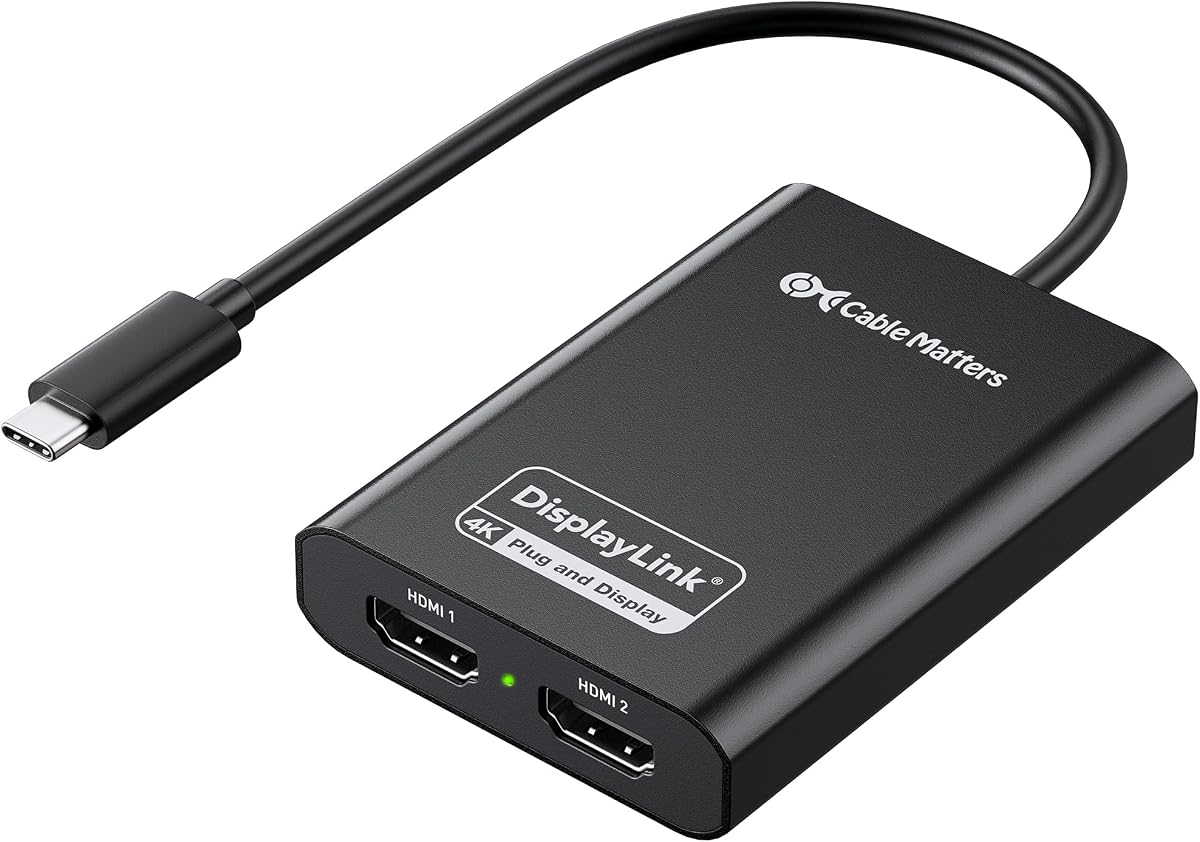
The Cable Matters USB C to Dual HDMI Adapter is a DisplayLink Certified option for creating two extended 4K at 60Hz displays from one USB-C, USB4, or Thunderbolt port. Its 4.0 rating is the lowest among the products reviewed, but its certification and broad modern-device support give it distinct value.
We may earn a commission when you buy through this link, at no additional cost to you.
The adapter uses HDMI 2.0 and USB 3.2 Gen 1 bandwidth to support smooth dual-screen productivity. It works with MacBook Air and Pro, Dell XPS, HP Spectre, and Lenovo ThinkPad systems, as well as macOS 11 or later, Windows 10 or 11, and ChromeOS. The aluminum enclosure is intended to dissipate heat and may feel warm during use.
Users must install a driver, and Mac users also need to grant Screen Recording permission. The stated recommendation for best dual-4K performance calls for a Windows 10 or 11 laptop with an Intel 8th Generation Core i5 or i7 or newer CPU, or a comparable newer system. HDMI cables are not included.
This is a good fit for a buyer who values DisplayLink certification and a durable USB-C-first design. The setup is less convenient than plug-and-play options, and users should verify hardware capability and include suitable HDMI cables in their planning.
DisplayLink certification provides a clear product identity for users who rely on the technology to bypass native display limitations. It is particularly relevant to productivity and multi-window work.
The aluminum housing is designed to dissipate heat during sustained dual-monitor use. A warm surface can be normal for this type of enclosure, but it should not prevent stable operation.
We may earn a commission when you buy through this link, at no additional cost to you.
The Sonnet DisplayLink Dual 4K HDMI Adapter connects two 4K at 60Hz displays to a Thunderbolt, USB3, or USB4 port. Its 4.4 rating and support for higher refresh rates distinguish it from adapters that focus only on standard 4K productivity output.
We may earn a commission when you buy through this link, at no additional cost to you.
The adapter can also drive two 1440p or 1880p displays at 144Hz, according to the supplied specifications, and supports 1080p and lower-resolution screens at 60Hz. Audio is supported, while the included USB-A female-to-USB-C male adapter broadens compatibility with systems that lack the preferred host port.
The product is especially relevant to M1 and M2 Mac notebooks, including MacBook Air and MacBook Pro models, and also supports M1 Pro, M1 Max, and M1 Ultra systems. However, the most specific guidance centers on those Mac families, so users with other systems should verify behavior before installation.
This is a strong recommendation for a professional who wants a dual-screen workspace and values higher refresh options without moving to a native multi-display graphics solution. It is less appropriate for buyers whose primary goal is gaming, since the product is presented as a general-purpose display adapter rather than a gaming-focused device.
The ability to support two 1440p or 1880p displays at 144Hz gives the adapter more flexibility for detailed and motion-sensitive desktop workflows. Display capabilities still depend on the connected monitors and host configuration.
The adapter was designed with a clear emphasis on M1 and M2-era Mac notebooks and related M1 Pro, M1 Max, and M1 Ultra systems. It gives those users a way to arrange multiple applications across a larger workspace.
We may earn a commission when you buy through this link, at no additional cost to you.
The right Displaylink Adapter depends on your computer, monitor connectors, operating system, and intended applications. Resolution claims, host-port support, driver behavior, and cable requirements should be evaluated together before making a selection.
DisplayLink is most valuable when a computer cannot natively drive the number or combination of displays you need. A native USB-C or Thunderbolt connection may be simpler for one monitor, while DisplayLink becomes practical when two high-resolution screens, older systems, or Mac display limits are involved. Confirm whether the adapter is solving an actual limitation rather than adding unnecessary complexity.
Choose DisplayLink when you need multiple high-resolution screens beyond the computer’s native limits. Use native video when possible for simpler setup, gaming, or protected streaming.
Dual-display models are the most common choice in this category, but their connectors matter. HDMI works with the broad majority of modern displays, while DisplayPort can provide a direct connection to compatible monitors and may suit professional desktop setups. Single-output adapters can still be useful when displays are added gradually.
Match both output type and count to the monitors you already own. HDMI-only displays are simplest with a dual-HDMI adapter; DisplayPort setups may benefit from a dual-DP model.
A 4K at 60Hz target is a strong baseline for detailed documents, spreadsheets, web research, and code. Higher refresh rates can improve motion smoothness, but they may require lower resolutions and compatible monitors. Resolution claims are also influenced by the host system, application load, USB bandwidth, and the quality of the cables used.
Prioritize 4K at 60Hz for general productivity and verify the maximum mode of both displays. Treat higher refresh figures as useful only when the connected screens and host can support them.
USB-C, Thunderbolt 3, Thunderbolt 4, and USB4 are related but not completely interchangeable in every implementation. USB-A support is valuable for older laptops and office equipment. Some adapters include a hybrid cable or host adapter, while others use a dedicated connector, so check the physical ports on your computer before ordering.
Choose a connector that matches daily use without requiring a permanent adapter. For mixed deployments, favor a model with both USB-C and USB-A host support.
Most DisplayLink adapters require software on the host computer. macOS usually involves installing DisplayLink Manager and granting screen or recording permissions, while Windows may also require a driver. ChromeOS support is listed for several products, but Linux, Unix, iOS, and iPad support varies or is explicitly excluded in some cases.
Verify the operating system before purchase and allow time for the required installation. A “plug-and-play” description may refer only to the physical connection, not the complete software workflow.
A Displaylink Adapter that doubles as a dock can include USB-A data ports, a wired network connection, and USB-C Power Delivery. These features are useful in a desk setup but may add size and complexity to a travel-focused system. Pay attention to charging wattage, data speed, and whether a port is dedicated to host connectivity.
Choose added ports only when they replace separate accessories you will actually use. A simple video adapter may be preferable for a minimal or frequently mobile setup.
DisplayLink is primarily suited to productivity, communication, coding, and general desktop applications. The products in this guide are not recommended for gaming, and several explicitly do not support HDCP-protected streaming services. Users watching protected video should use a native display connection or a separate adapter designed around that content.
Check the intended application before purchase. The same adapter that handles multiple office windows perfectly may be unsuitable for games, protected streaming, or graphics-intensive design workflows.
A small aluminum adapter is easy to carry, while a mini dock with Ethernet may be better suited to a permanent desk. Consider attached cable length, housing size, heat management, and the number of separate adapters required. A solution that looks compact but forces the user to carry several other cables may offer little practical benefit.
Match the adapter’s footprint to the workspace. Prioritize a simple, self-contained unit for travel and a multiport dock for a fixed productivity station.
Begin by identifying the host port, installing the latest compatible DisplayLink software, and connecting the adapter before launching demanding applications. On macOS, approve all requested display or screen-recording permissions. On Windows, allow the driver installation to finish, then confirm that each display appears in the system’s display settings.
Connect the appropriate HDMI or DisplayPort cables and power on the monitors. Use the operating system’s display-arrangement controls to extend or mirror the desktop, set the desired resolution, and place the screens in the correct physical positions. If the image is unstable, reconnect the host cable and display cables while the computer is off, then reboot and recheck the DisplayLink settings.
For travel, disconnect the host cable when moving the computer, avoid sharply bending attached leads, and keep the adapter in its case or a protected pocket. A metal housing may become warm during sustained dual-monitor use, so provide ventilation and do not cover the device with papers or fabric. Periodically check for driver updates, especially after a major operating-system upgrade.
Most DisplayLink adapters require host software, even when the physical connection appears plug-and-play. macOS users generally need DisplayLink Manager and the appropriate system permission, while Windows may require a driver installation. Check the product’s setup instructions and install the current compatible version before configuring multiple displays.
Several models in this guide support two 4K displays at 60Hz simultaneously. Actual performance also depends on the host computer, operating system, USB bandwidth, connected cables, and active applications. Check that both your computer and monitors support the selected resolution and refresh rate.
That is one of the main reasons to consider DisplayLink on modern MacBook systems. Models that provide two external display outputs can add two screens even on computers that natively support only one. macOS setup still requires compatible software and permissions, and protected streaming remains unsupported.
Generally, no. Most adapters in this guide do not support HDCP-protected content, which commonly affects Netflix, Disney+, Hulu, and Prime Video. Use a native display connection or a dedicated adapter that explicitly supports protected content for those viewing tasks.
The products reviewed are generally not recommended for gaming. Native graphics output usually provides lower latency, better synchronization, and more reliable high-refresh performance. DisplayLink is better suited to office work, browsing, coding, spreadsheets, and communication applications.
Choose the output your monitors already support to minimize cable requirements and setup complexity. Dual-HDMI models are convenient for most consumer displays, while dual-DisplayPort options suit compatible professional monitors. An HDMI-only display used with a DisplayPort adapter may also require a suitable active DisplayPort-to-HDMI cable.
The single-output WAVLINK universal model can be combined with additional adapters, with the supplied information stating support for up to six additional monitors on PCs. Dual-output adapters generally cover the common two-monitor case by themselves. Host bandwidth and operating-system limits can affect the total achievable configuration.
Verify that the DisplayLink software or driver is current, confirm that required macOS permissions have been granted, and check the cable connection at both ends. Restart the computer and adapter, then inspect the system display settings. Also confirm that the computer, adapter, cable, and monitor all support the intended resolution.
The WAVLINK USB 3.0 and USB-C model stands out as the strongest all-around option for common business systems, while the StarTech mini dock offers a compact alternative with dual DisplayPort output and Gigabit Ethernet. The Plugable USB-C and USB-A adapter is a polished premium choice for Windows-focused offices that value flexible host connections and lifetime support.
Prioritize the details that affect your actual desk: the number and type of monitor connections, native display limitations, operating-system support, required driver workflow, charging needs, and whether protected content matters. An HDMI model is easiest for mixed consumer equipment, while DisplayPort is attractive for compatible professional monitors. Cable requirements and excluded platforms should be checked before ordering.
Product listings, availability, and prices can change, so confirm the current specifications and included accessories at the time of purchase. A careful match between the adapter and your computer, displays, and daily applications will provide the most dependable multi-screen experience.